STL to STEP in FreeCAD (or Skip the Setup)
FreeCAD is the free, standard way to turn an STL into a STEP file, and it genuinely works, with two honest caveats: the workflow is fiddly, and what comes out is a faceted solid rather than clean editable CAD. This guide walks the exact steps in FreeCAD, explains the one setting that matters, and is clear about what the result is and is not. It also covers where FreeCAD struggles, and a shortcut that runs the same conversion pipeline without the install.
Why This Is Not a Normal File Conversion
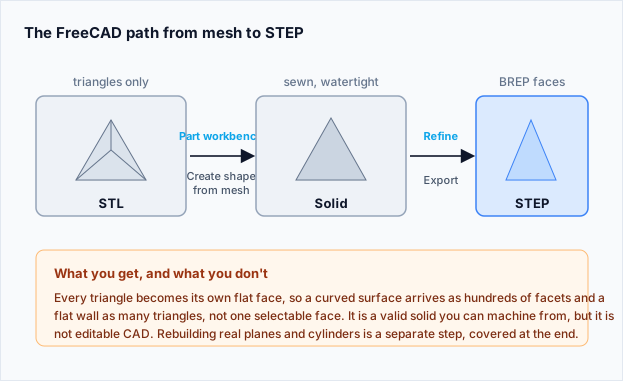
An STL stores only triangles: three points and a normal per facet, with no notion of a face, an edge, or a solid. A STEP file stores boundary representation geometry, real surfaces bounded by real edges. Going from mesh to STEP means inventing that structure from a soup of triangles, which is why there is no one-click, lossless answer. FreeCAD does it by treating the triangles as a shell, sewing them into a closed surface, and declaring that a solid.
The FreeCAD Method, Step by Step
This is the reliable sequence in FreeCAD 1.0. It uses the Part workbench, which wraps the same OpenCASCADE routines that do the real work.
| Step | What to do |
|---|---|
| 1. Import | Open your .stl file. It appears as a Mesh object, not a solid. |
| 2. Switch workbench | Select the Part workbench from the workbench dropdown. |
| 3. Shape from mesh | Part menu, then "Create shape from mesh". Set a sewing tolerance (0.1 mm is a sensible start). This produces a Shape from the triangles. |
| 4. Convert to solid | With the new shape selected, Part menu, then "Convert to solid". This is what makes it a true solid rather than a loose shell. |
| 5. Refine (optional) | Part menu, then "Refine shape" to merge coplanar faces where it can, cleaning up some of the triangle clutter. |
| 6. Export | Select the solid, File, Export, and choose STEP (.step / .stp). |
If "Convert to solid" fails or the shape looks wrong, it almost always means the mesh was not watertight to begin with, so the sewing left gaps. Repairing the STL first (closing holes, fixing non-manifold edges) is what makes this step reliable, which is why the order matters: fix the mesh, then convert.
The Sewing Tolerance Setting
The sewing tolerance in step 3 is the one dial that changes the outcome. It is how far apart two triangle edges can be and still be joined into one. Too small and a mesh with tiny gaps never closes into a solid. Too large and distinct features get welded together and detail is lost. Start at 0.1 mm; if convert-to-solid fails, raise it gradually, and if fine detail is disappearing, lower it. On a clean, watertight mesh the exact value barely matters, which is another reason to repair first.
What You Get, and What You Don’t
The STEP file FreeCAD produces this way is a valid solid you can open in any CAD program and machine from, but every triangle becomes its own flat face. A curved surface arrives as hundreds of tiny facets instead of one smooth face, and a flat wall arrives as a mesh of triangles rather than a single selectable face. You cannot click a hole and change its diameter, because there is no cylinder there, only facets. It is a solid, not editable parametric CAD.
Faceted conversion (this method)
- —Every triangle becomes a flat face
- —Curves look like many small facets
- —No single face to select or dimension
- —Fine for reference or as machining stock
- —Works on any watertight mesh
Analytic reconstruction
- —Detects real planes and cylinders
- —A hole comes back as one editable cylinder
- —One selectable face per flat region
- —Editable in Fusion, SolidWorks, FreeCAD
- —Only works on prismatic mechanical parts
Where FreeCAD Struggles
Three cases give the FreeCAD route trouble. Very high triangle counts (scans, dense exports) make shape-from-mesh slow and can exhaust memory, so simplify the mesh first. Parts positioned far from the origin sometimes convert with precision errors, so move the mesh near the origin before converting. And organic or sculpted shapes gain nothing from a STEP conversion at all, because there is no underlying flat or cylindrical geometry to recover; they stay a faceted blob and are better left as meshes.
What This Looks Like on 133 Real Files
Most FreeCAD tutorials show one file that works. We run this pipeline as a server, so we see what happens across files we did not choose. These numbers are from 133 real STL to STEP conversions, and two of them are worth knowing before you start.
The first: analytic reconstruction, the thing that gives you editable surfaces instead of facets, succeeded on 2 of those 133 files. Not two percent. Two files. Of the rest, 100 failed the surface-coverage check, 17 rebuilt into a solid whose volume drifted too far from the mesh, and 8 could not be rebuilt at all. If a converter promises editable parametric CAD from any STL, that is the number to ask it for.
The second: triangle count does not predict how long sewing takes. A 6.89 MB model finished in 919 seconds. A 2.18 MB model with 43,884 triangles ran past 1,800 seconds and had to be killed, twice. The smaller file took longer. Our own bench on clean models (25,000 triangles in 15 seconds, 100,000 in 246, 200,000 in 796) predicted about 50 seconds for that file. It was wrong by roughly 30 times.
| Outcome | Jobs | Median | 90th percentile | Worst |
|---|---|---|---|---|
| Completed | 36 | 23s | 109s | 919s |
| Failed | 21 | 18s | 1800s | 1800s |
What actually costs time is mesh topology, not size. Sliver triangles are the worst case: a triangle so thin it is nearly a line forces the sewing step to decide whether its two long edges are the same edge, and that decision is expensive and sometimes impossible. This is why a 3D scan converts badly and a printed part converts well at identical file sizes. Scans are full of slivers; anything exported from CAD is not.
You can see the split in the timings. Fitting surfaces to the triangles took a median of 2.57 seconds across all 133 jobs and never more than 26 seconds. The file that ran for half an hour spent 3.21 seconds analysing and the remaining 1,797 seconds sewing. The analysis is never the slow part. The sewing always is. If a mid-size part has been sewing for ten minutes in FreeCAD, it is not nearly finished.
The Shortcut: Same Pipeline, No Install
If you would rather not install FreeCAD and click through six steps per file, our STL to STEP tool runs the same OpenCASCADE conversion on the server, and repairs the mesh first so the sew is reliable. For prismatic mechanical parts it goes one step further than the manual FreeCAD route: it detects the planes and cylinders behind the triangles and rebuilds them as real analytic surfaces, so a drilled hole comes back as one editable cylinder rather than a ring of facets. It only ships that rebuild when the fitted surfaces cover most of the part and the volume matches, and falls back to the plain faceted conversion otherwise, telling you which you got.
Convert an STL to STEP in the browser, mesh repaired first, with analytic reconstruction for mechanical parts. Free, no install.
Convert STL to STEPFrequently Asked Questions
Can FreeCAD convert STL to STEP?
Yes. Import the STL, switch to the Part workbench, use "Create shape from mesh", then "Convert to solid", optionally "Refine shape", and export as STEP. The result is a valid solid, but every triangle becomes a flat face, so it is not editable parametric CAD.
Why does "Convert to solid" fail in FreeCAD?
Almost always because the mesh was not watertight, so sewing left gaps and there is no closed shell to make solid. Repair the STL first (close holes, fix non-manifold edges), or raise the sewing tolerance slightly, then try again.
Why is my converted STEP still made of triangles?
Because the faceted method turns each triangle into its own face; it does not recover the original surfaces. To get real planes and cylinders you need analytic reconstruction, which fits primitives to the mesh. That only works on prismatic mechanical parts, not organic shapes.
Do I need to install FreeCAD to do this?
No. FreeCAD is the standard free desktop route, but our STL to STEP tool runs the same conversion pipeline in the browser and repairs the mesh first, with analytic reconstruction for mechanical parts and an honest fallback to faceted output otherwise.
Why is FreeCAD so slow converting STL to STEP?
The sewing step, not the import. Across 133 conversions we measured, fitting surfaces to the triangles took a median of 2.57 seconds and never more than 26; the sewing took everything else. It is also unpredictable: a 2.18 MB file with 43,884 triangles ran past 1,800 seconds while a 6.89 MB file finished in 919. Cost tracks how messy the topology is, not the triangle count, and sliver triangles are the worst case. Repair the mesh in the Mesh workbench first.
Is STL to STP the same as STL to STEP in FreeCAD?
Yes. STP and STEP are the same format with two extensions, both ISO 10303. FreeCAD writes either one depending on what you type in the export dialog, and any CAD package that opens one opens the other.
How much RAM does FreeCAD need for a large STL?
More than you expect, and it grows with triangle count rather than file size. Every triangle becomes its own BREP face before the coplanar merge runs, so a 200,000-triangle mesh builds 200,000 faces in memory first. On our server a mesh that size peaks around 4.7 GB. Simplify the mesh before converting if you are near your machine limit.
This guide covers one problem. For the full set of 3D converters, checkers, and calculators, visit the hub.
Browse 3D Tools